NFS Underground 2 Browser
Play Need for Speed Underground 2 in your browser and race through Bayview.
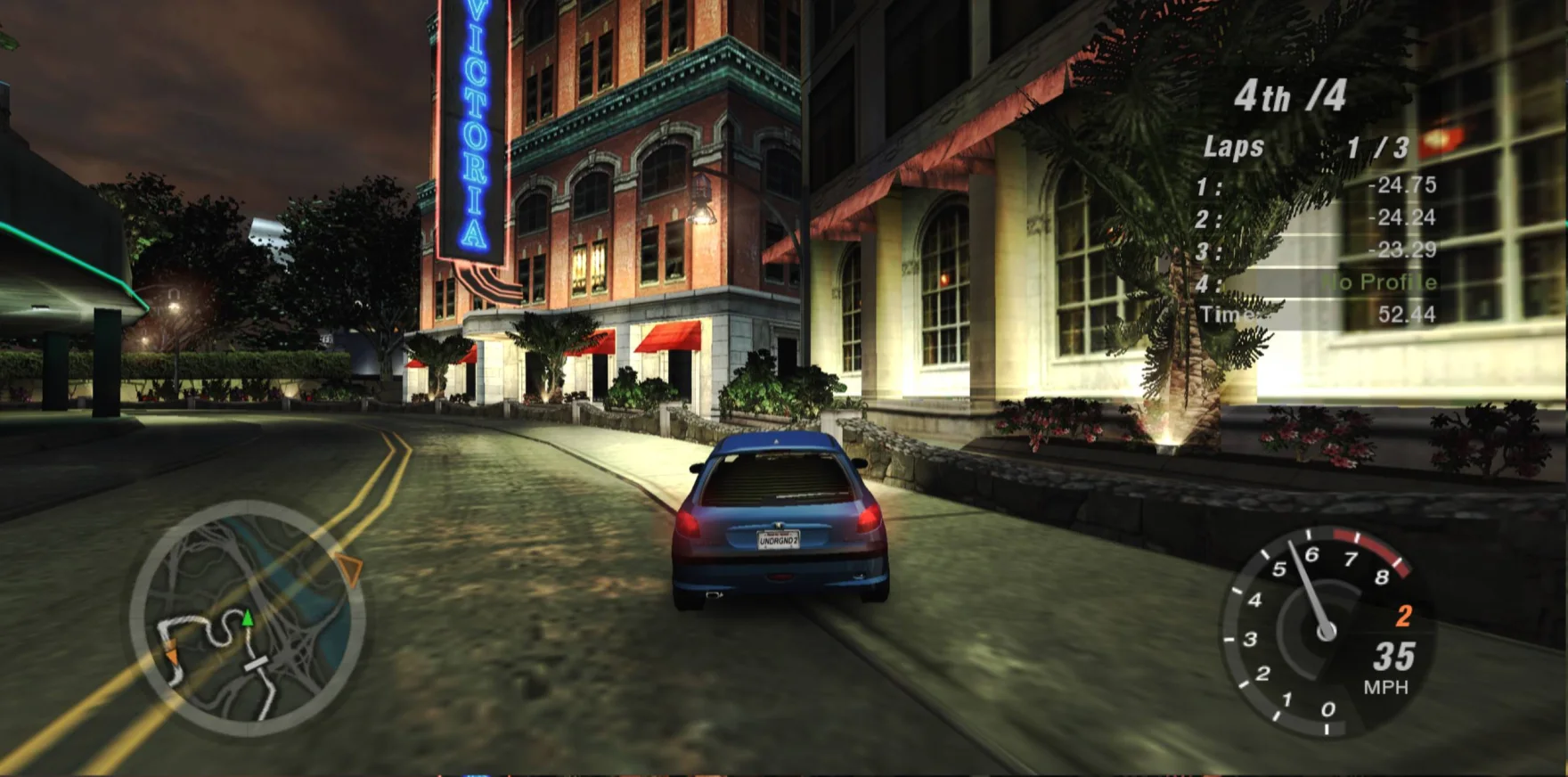
Starting Underground 2
- Browser check
- Engine
- Game scene
Press Enter at the title screen. For a quick test, choose No if asked to create a profile.
Arrow keys to drive and navigate · Enter to confirm · Esc to pause or go back
Your first race
-
Start the player
Use desktop Chrome with hardware acceleration. Press Enter at the title screen.
-
Choose Quick Race
Try Quick Race → Circuit → Resort Loop → Peugeot 206 → Auto.
-
Save your progress
Create a profile to keep your progress. Save in the game, then export a backup from Player options.
Controls
- ↑ ↓ ← →
- Drive
- Enter
- Confirm
- Esc
- Pause
Guides
Get through your first race, find the controls and keep your progress when you change browsers.
- 01 Your first raceFind your way from the title screen to a circuit.
- 02 Keyboard Controls and GamepadFind the default driving and menu keys for NFS Underground 2 in your browser, plus where to check gamepad bindings.
- 03 Downloads and cacheKnow which files are loaded and how to run offline.
- 04 Browser and Hardware RequirementsCheck your graphics card, WebGPU, graphics acceleration and available storage before running NFS Underground 2 in Chrome.
- 05 Saves and backupsExport profiles and restore them in another browser.
- 06 Getting fasterLearn the line before tuning the car.
- 07 About this versionCheck the scope of the PC browser runtime.
- 08 TroubleshootingFix slow loading, missing input and muted audio.
- 09 Best Settings for Browser PlayStart with these browser and display settings, then use the same Quick Race to compare responsiveness and picture size.
- 10 How to Play With FriendsFind out what this browser build supports and how the upstream Underground 2 Revived multiplayer lobbies work.
- 11 Can You Play on Mobile?Check the iPhone, iPad and Android status for this browser build, from startup to driving a lap.
- 12 Play NFS Underground 2 on MacLaunch the browser game in Chrome on Mac, check graphics acceleration and find the right keyboard controls.
FAQ
How do I start my first race?
Start the player, click the game when it appears, then press Enter. You can skip profile creation for a quick test. Try Quick Race → Circuit → Resort Loop → Peugeot 206 → Auto. Create a profile before starting Career if you want to keep progress. Your first race →
How do I use a keyboard or controller?
Click the canvas before using the keyboard. Drive with arrows or W/A/S/D, use Alt for nitrous, Space for the handbrake, C for the camera and Esc to pause. Use Enter to confirm menu choices. Connect a standard controller, focus the game and press a button. Check the mapping in the game’s options. Keyboard Controls and Gamepad →
How much data does the game download?
Play loads a 35.5 MB WebAssembly engine. The complete English data set without movies is about 1.98 GB. The player requests menu, car, sound and track blocks as needed. The browser reuses cached blocks. With the complete local data set, the server can supply every required block in offline mode. Downloads and cache →
Can my browser run it?
Use a current desktop Chrome with hardware acceleration. The runtime requires WebGPU, shared memory, cross-origin isolation and origin-private browser storage. The runtime reserves 1 GiB of shared memory, plus graphics and browser allocations. Mobile, Safari and physical controllers require separate testing. Browser and Hardware Requirements →
How do I keep or move my progress?
Save from inside the game. After quitting, export a JSON backup in Player options. Import replaces the current profiles, so export anything you want to keep first. Clearing browser downloads removes cached game blocks. Clearing all site data can also remove saves. Saves and backups →
Is multiplayer or cloud saving available?
The runtime provides single-player Quick Race and Career, with movies disabled. The site language can change independently of the English game menus. Profiles stay in this browser. This player does not connect to matchmaking, online multiplayer or cloud saves. How to Play With Friends →
What if loading, controls or sound stop working?
If the hardware check fails, try current desktop Chrome with acceleration enabled and storage available. Quit any game still running in another tab. Click the game picture again if input or sound is missing. If a scene keeps loading, check the connection or the local data set, then quit and retry. Troubleshooting →